Organize Your Family Documents

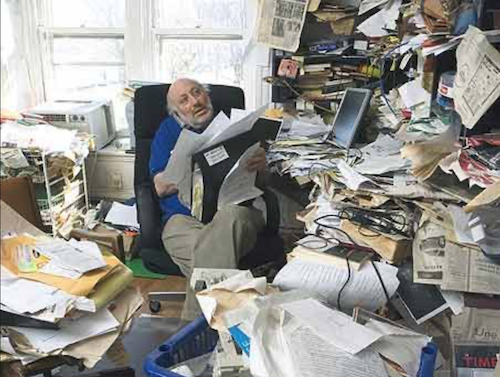
Trying to find ways to preserving your family history documents can seem, at times, daunting. Do you keep a paper file system and numerous file cabinets around the room, or do you go digital? With the "Digital Age" well upon us however, keeping paper records just seems foreign to me. If I tried to keep a paper based file system to store all the documents and photos I have, my office area would look just like that in the photo to the right.

Some in the “older” generation prefer to have things printed out on paper. Perhaps it is because we feel a little intimidated by computer technology. FamilySearch can certainly become a “file system” to store information for us. Let’s explore some digital file system options.

Paper Files vs Digital Files System

Should I Switch?

Converting to a Digital File System

What Type of Scanners Needed?

Organize Your Folder Structure

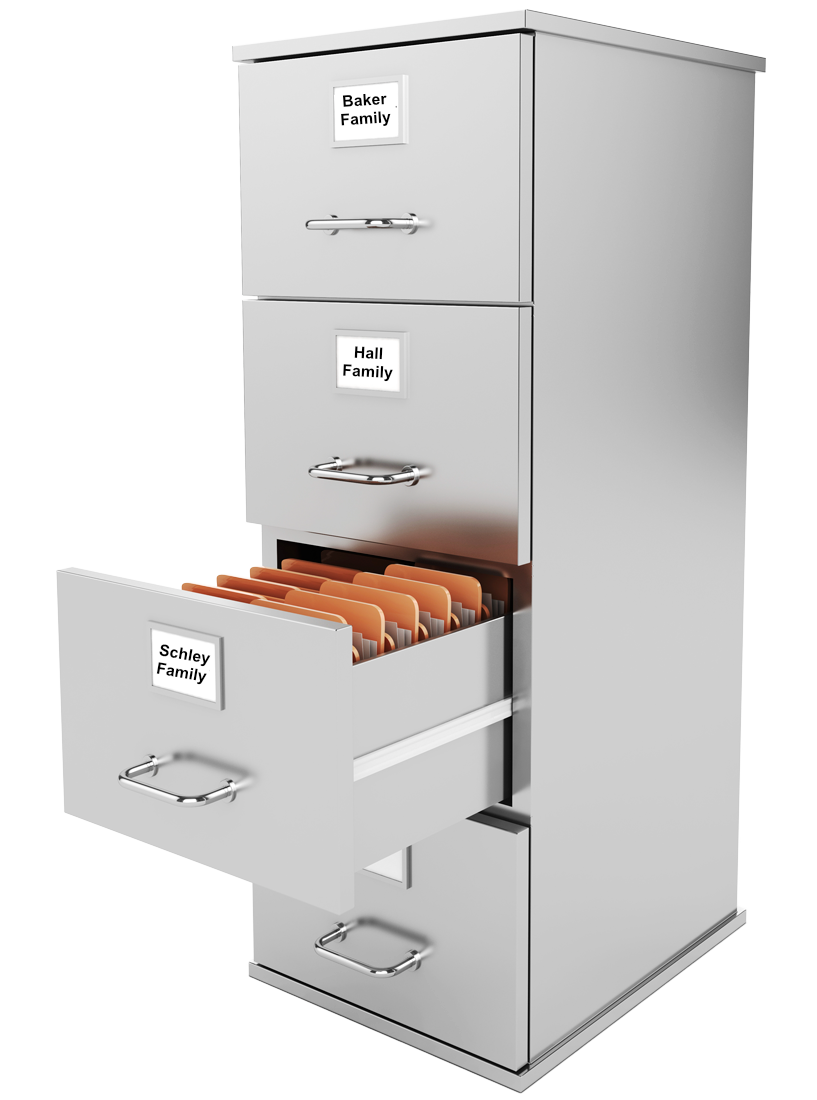
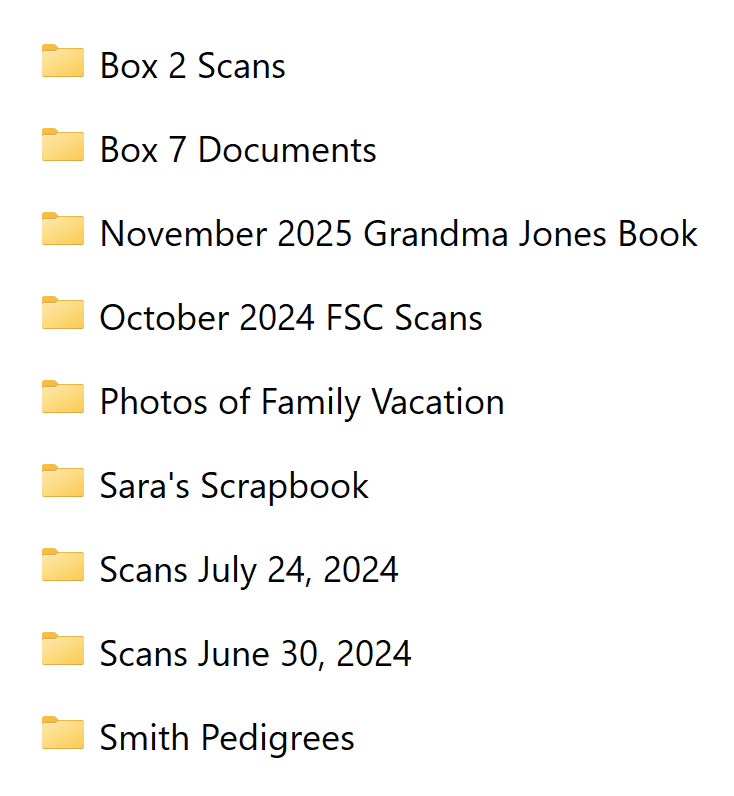
You may have found a paper file system that works fairly well from an organizational standpoint. Try to re-create your computer's folders with what you have in your file cabinets. You may have had a file cabinet with drawers labeled with family surnames. Inside each drawer you might have file folders for each ancestor with that same surname. The individual’s file folder would then contain the various certificates, histories, and photos for that individual.

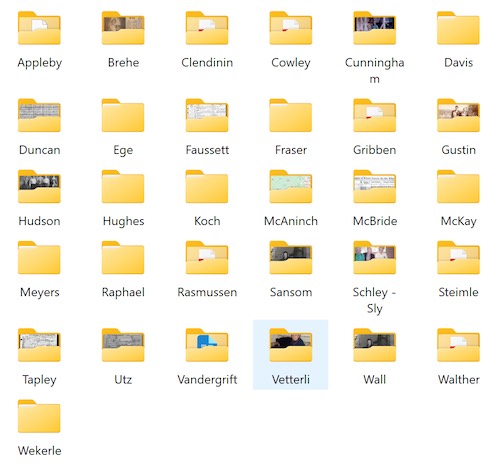
A digital file system can be organized in a similar way. As an example, I have a folder labeled “Surnames”. Where you store this digital folder in your computer’s document folder is up to you. I keep my “Surnames” folder under a general “Family History” folder on my computer.

Under the “Surnames” folder, I have a variety of subfolders with the family surnames. They will sort alphabetically (A to Z).

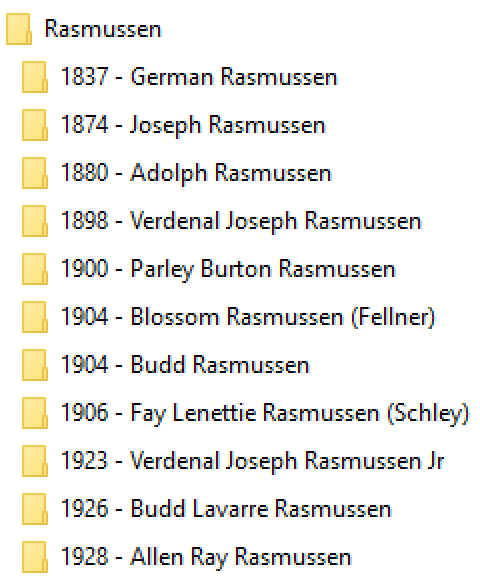
Inside of the family surname folder, I create subfolders for each of the persons with the common surname. In the example, you will notice that a birth year is at the beginning of the folder name. This helps to sort the folders in a timeline fashion, or, oldest to youngest individual. Another reason to do this is that you may have several individuals with the same name. I have 3 “Charles Meyers” over 3 generations in my family. Putting that birth year before their name helps me to more quickly identify which person I want to work on.

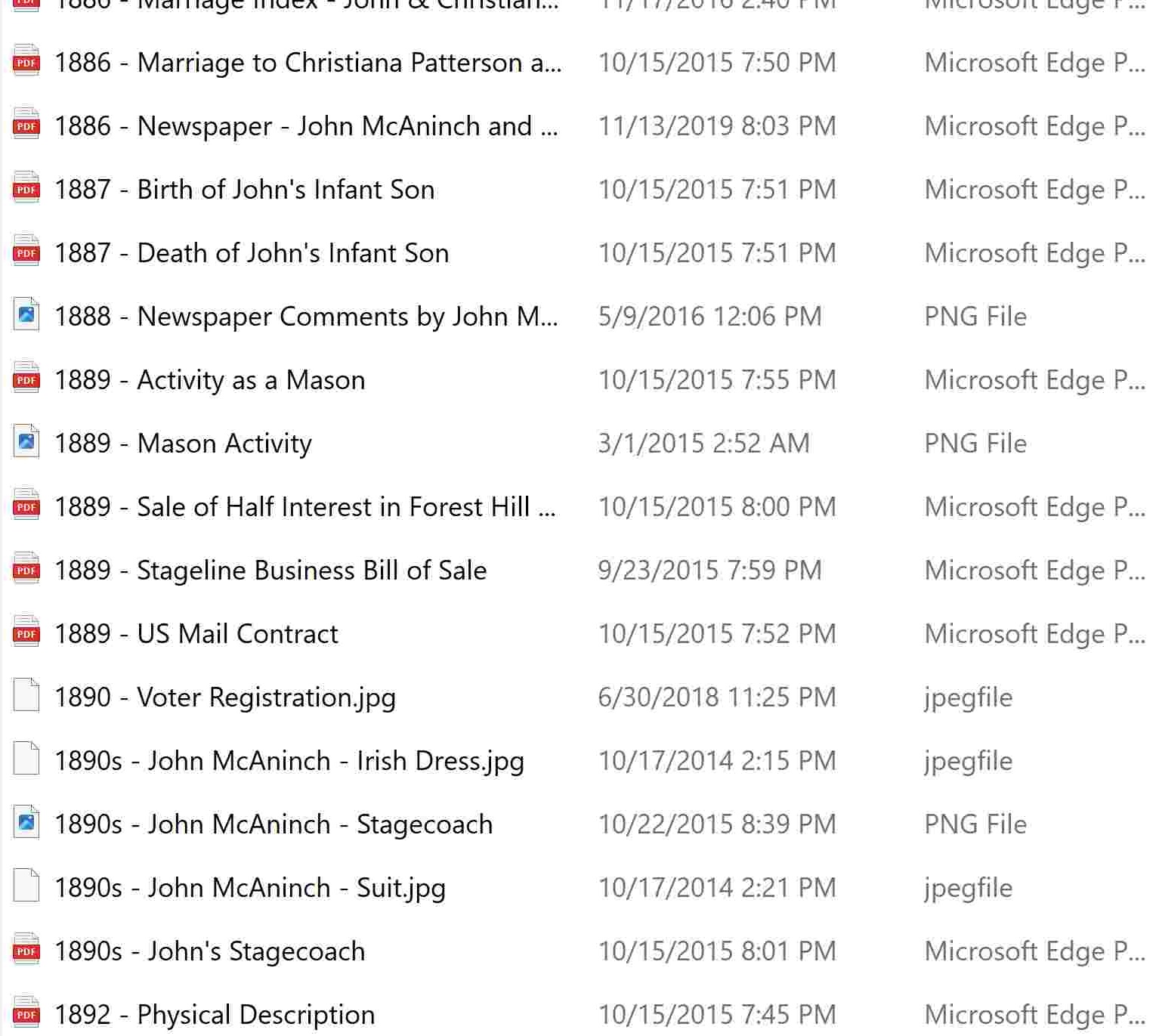
In this example, you will see the individual’s documents. There will be photos, certificates, histories, and such under their folder. Again, you will notice a year at the beginning of the document’s filename. As an example, you have a birth certificate in 1930 and a death certificate in 2015. These files become the start and end files in that individual’s folder. If all the other documents you put in this folder, like marriage certificates, newspaper articles, personal photos, PDF files, histories, and such have a year date before the filename title, they will display in a sorted timeline. This will help you to more quickly find a file. There are other ways to search and find files as well, which I will discuss below.

Notice that there are some year dates followed by an “s” (like 1960s). You may not know the exact year of the document, but you do know that the document occurred somewhere between 1960 and 1969. You might have 1965s to designate that this file or event occurred between 1965 and 1969.

Finding an organizational system, physical or digital, for your family history documents is an important process to master. There's nothing more frustrating than to know that you have a person's birth certificate "somewhere" but can't find it. I frequently see extensive file disorganization with patrons that I work with. The files are so scattered across their hard drives and without specific filenames. There was no way anyone could find them except to go through folder by folder to find a needed file. It is even worse when their documents are stored in numerous folders on multiple USB flash drives. (See USB Flash Drive Risks)

Explore some organizational options by clicking on the links below.

Use Metadata to Help With File Searching

Metadata is additional information that is attached to the file, but is not readily seen. GPS location, Comments, Stars, and other such information is only a small amount of all that can be attached. This data can be seen in Windows Explorer. You can create “tags” or keywords for example. The tags could be a person’s name for example, or “birth certificate”, “marriage”, and more. These tags are searchable across a whole hard drive, not just in a specific folder. Metadata is a really neat way to augment the way in which you find your files.

As you learn to better organize your files, the ability to find specific files will increase. Be sure to keep your family history documents under a single file folder. Knowing this single location makes it very easy to keep good backups of all your family history files. For information on keeping good file backups, review below.

Missionary Communications Board

© 2026 Stephen A Meyers, All Rights Reserved.

Paper File Systems

Pros:

Don’t need a computer/monitor to read paper documents

Cons:

Paper & printer supply costs to print to paper

File cabinet costs and then where to store them all as the paper document volume grows.

Paper documents not easily shared with others without a scanner/printer or copy machine

Duplication of research efforts/resources by others; (you have a purchased paper certficate in your file cabinet that someone else also has to purchase, etc)

Searching for documents in file cabinets can be quite cumbersome unless a very meticulous organizational system is kept up

Potential to lose everything in a fire/flood

Who will maintain all that information when you pass away? We often saw boxes of files/photos dropped off on the doorstep of our local FamilySearch Center or boxes sent to the curb for garbage day pickup

Digital File Systems

Pros:

Digital file systems allow for easy searching of files where filenames have good descriptions in them

A folder management system can be very much the same as a paper one, but can be easily modified, folders renamed or added to, or split, files moved, and such

Adding "Metadata" to the file increases the searchability significantly allowing a search of many thousands of digital documents to occur in seconds

Using "Shared Folders" in Cloud Drives makes it easy to share files with others and to collaborate. Sharing a folder does not mean that the other person(s) can modify or delete your files. You set the conditions of a shared folder

Oh, I forgot to mention that you can now get rid of all those file cabinets you have collected and enjoy a more spacious home office area.

Cons:

Creating digital documents does require digital equipment, like a scanner for example. SmartPhones now have good cameras and apps that can create photos or PDF type images so easily.

Digital files do have to be backed up in case of your computer's hard drive failure. Storing these files on backup USB hard drives and in the "cloud" can ensure that these files will stay protected