Organizing My Images

Where Do I Start?

Organizing image files is actually a simple process, but it will consume a quite a bit of time where there are literally many thousands of images. I have outlined below a couple of considerations in how you may want to proceed. If you only have a few hundred or so images, Option One would be an appropriate one to look at. However, if you have a few thousand or more, then Option Two would be the better option to consider.

Option One: Scan All My Photos BEFORE Organizing Them

In my experience, this type of approach typically doesn't work. Imagine this scenario. You have just completed scanning several thousand documents and photos. It took quite a long time to complete this whole project.

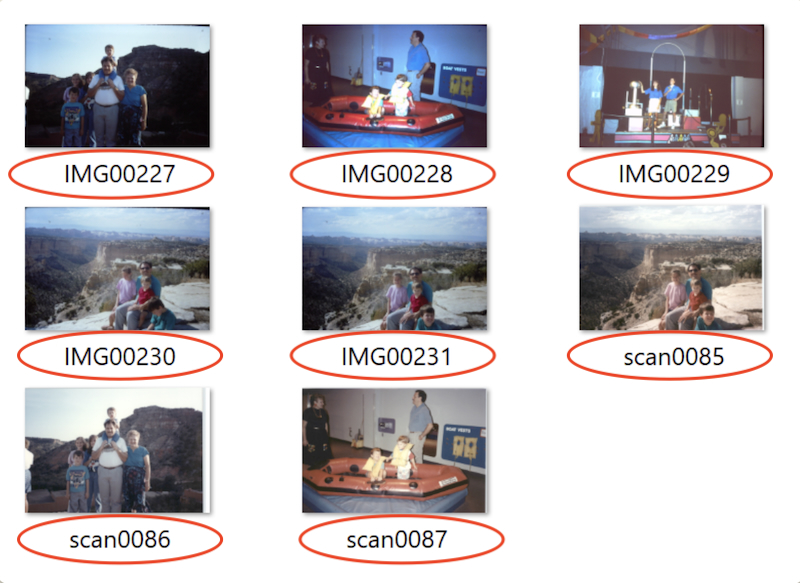
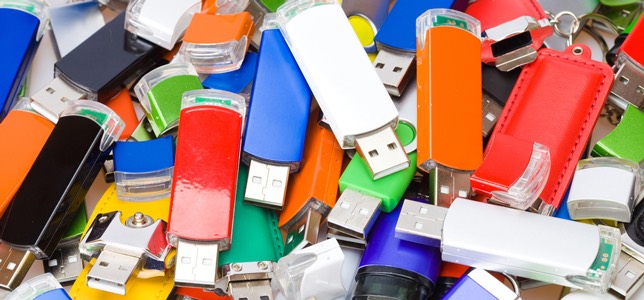
The photos and documents are probably on multiple flash drives in folders that have non-descript labels. Hopefully none of the flash drives are lost, or in a not uncommon situation, a folder becomes corrupted. Even worse, the documents and photos are probably the typical scanner assigned ones, like img001, img002, img003, … and so forth. When trying to find files, they are just plain difficult to find, let alone to begin sorting.

Pretty soon the brain fatigue kicks in and tells us, “I got them scanned, maybe my kids can organize them.” The problem is that the kids will probably not know what people are in the photos like their parent or grandparent would. “Project fatigue” has set in. The whole sorting project just stops.

I have personally been through this kind of scenario. Luckily I began to get smarter after a couple of thousand images. I realized I needed to work differently. With over 45,000 images in our physical collection, it would have been impossible to scan them all and then sort later.

One more thing to think about … most likely, there will be quite a few photos in your collection that are “meaningless” photos such as vacation photos of trees and mountains, multiple photos of the family dog, or the house, or whatever. Why take the time to scan all of these types of photos when there is no meaningful story behind them. Is our posterity really going to want to see these types of photos?

One other thought, if you don’t have that many documents and images, why not utilize FamilySearch to "organize" and store your images? We don’t want to just dump our photo collection there. If you have picked out the important photos and documents, upload these to FamilySearch and then you don’t have to worry about organizing and storing them. (I have heard a couple anecdotal stories of FamilySearch “losing” photos, but this would be very unusual.)

Option Two: Organize My Photos Before Scanning

If you have thousands of images, decide which photos have some kind of story or meaning behind them.

Your ancestral photos would be important to scan and upload to FamilySearch.

When it comes to your personal family or individual photos, decide which photos truly have meaning. I have seen FamilySearch Center patrons just scan everything that includes everything from vacation scenery photos, people they do not even know, duplicated photos of the family dog, and so forth. Sort out those “meaningless” photos and don’t worry about spending all the time scanning them.

You can always come back later and scan some of the above types of images if you like, or if you discovered the name of a person in an image, and so forth. However, you would like to complete your photo organization sometime "within a tolerable period of time.” :)

There is perhaps one exception to the above recommendation. If you have slides to digitize, it may be easier to scan them all so that you can more easily view what content is in them.

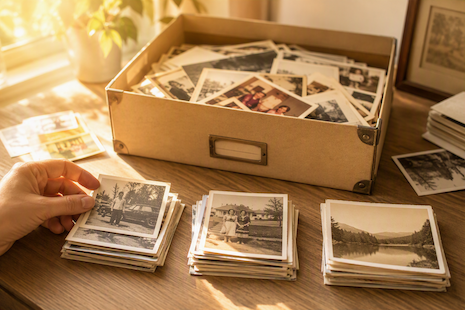
Organize your physical photos into piles according to what year they were taken.

You do not need to physically go through ALL your photos at once. Grab some photos, perhaps 200 at a time, and physically sort them in groups by year.

Once you have your photos sorted by years, go through each “years” pile and then separate those photos into “events” such as vacations, birthdays, holidays, and so on.

You may find that you just don’t have that many photos for each “event”. That’s okay as you can just keep them in the general year folder. As we will discuss later when naming your images, you will probably have a Year/Month date within the filename.


Create your computer’s folder structure similar to what your photo piles look like.

The MOST important point here is to keep ALL your scanned photos under ONE primary folder. In my case, I just created a folder named "Meyers Family Photos". This is your TOP level folder. It could be stored inside the “My Pictures” system folder. I keep my folder in my “Documents” folder since I am a Mac user and everything in the Documents folder syncs with iCloud.

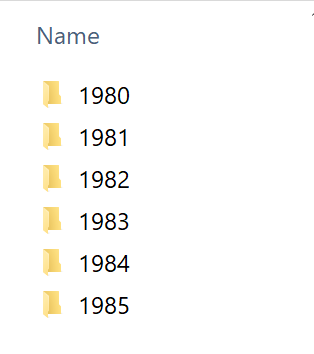
You can begin to create your digital folders on your computer to match the physical piles you have created. You might have have created photo piles, say for "1991”, "1992”, and so forth. Create those same folders on your computer under your primary folder. Your folder structure may begin to look something like that in the example.

Example

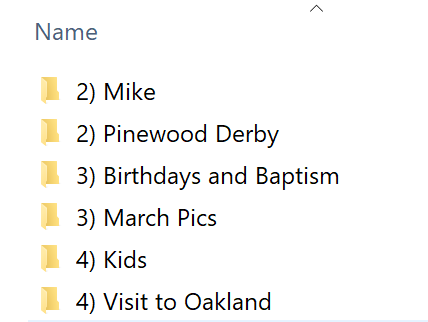
Within your year piles, you will likely have different “events” that happen during the year, like a birthday party, high school graduation, Yellowstone vacations, Thanksgiving events, and so forth.

If you have a March birthday party for Sarah, create a subfolder like:

3) Sarah’s Birthday Party

For Thanksgiving photos, create a subfolder something like:

11) Thanksgiving in Utah

The numbers before the event description are simply the month that the event occurred in. As you create your folder structure you will more easily be able to later drop your scanned photos into it.

Example

Spend an hour or so scanning your photos then move them into the folder structure.

Be sure to be familiar with Proper Scanner Settings for your photos. You may have anything from 2”X3” photos up to 8”x10” photos. These should be scanned with DIFFERENT scanner DPI settings.

As soon as your scanning session is over, begin dropping your images into the file structure you have set up. It is far easier to complete this process because the photos are still fresh on your mind.

Can you imagine trying to go through thousands of digitized photos, that took many months to scan, and then trying to move them into the appropriate folder structure? I bet that that organizing effort never gets completed!!

By doing small batches of pre-sorting photos, scanning, and then moving them into your folder structure, the process of organization gets more quickly done in the long term.

When patrons just scan their photos, often to multiple flash drives and all with non descriptive (and similar) file and folder names, the task at hand to get them into an organized folder structure becomes HUGE. This is where “Projet Fatigue” becomes prominent. The chances are great that any organization will never happen.

In Summary:

  • Don’t plan on scanning ALL your images. Many may have no meaning to anyone with no real story behind them.
  • Work in smaller “batches”. Sort them into years and events. Make computer folders that match the years and events. Scan these photos and then move them into your organized computer folders.
  • After you have scanned your photos, don’t forget to name the individual files. This makes them more searchable later.
  • Safely Back Them Up to additional external drives (NOT USB flash drives NOR SD cards)
  • Share these photos with family. Upload your images to FamilySearch and then write a short memory about them. You may not have a memory about the photo, but other family members likely will. The family can collaborate and fill in details.

FAQs

How do I LABEL my scanned photos?

The scanner software will have nonspecifically assigned a label to your scanned files. The file names will have a prefix (often “img”) followed by consecutive numbers. As an example, you might see img001, img002, img003 and so forth depending on the prefix you have selected.

Unfortutately, relabeling your filenames is pretty much a manual process done in Windows Explorer or Apple Finder, by you. If you think about it, every photo has different content in it, different people, different setting, and such.

Suppose you have a photos of Henry’s high school graduation in May 1993. Your folder name is 5) Henry’s High School Graduation which does sit in the 1993 Year folder. I typically name my files with the year first, then month (if known), then a description of what is in the photo. This format will date stamp your images so they become sortable in the File Explorer. This would be more helpful if you kept all of your photos in a single YEAR folder without an event folder. Your filenames could look like the following:

1993(05) - Henry Getting His Diploma

1993(05) - Grandpa Joe, Henry, and Father Harry in Front of School

1993(05) - Henry With His Mom Mary, His Sister, Suzie by Doorway

And so forth...

You could rename all the files that are in an event folder using a Windows "batch process” (all at the same time), such as, 1986(03) - Girl’s Birthday Party, but each filename will end with a different number, like xxx001, xxx002, etc. The advantage to doing something like this is that the photos are better found should they meander outside the main event folder. There would be no descriptive information in the filename with this type of file renaming. However, if you used metadata, the descriptive information could be contained in the metadata fields.

Using “metadata” (described below), you can add descriptive data like location, event comments, dates, tags with people’s names, and more. Adding metadata can greatly help you find files.

Does this sound like a lot of work? Yes, on the front end, but not on the back end when you are trying to search for your photo locations. You will reduce a lot of the “I know I had some photos of the girl’s 9th birthday party somewhere”. If your posterity can find the photos of them easily, you will have been successful in all your efforts. If they can’t ... the large digital collection of photos may just be erased. (That’s sad!)

How will metadata help me organize my photos?

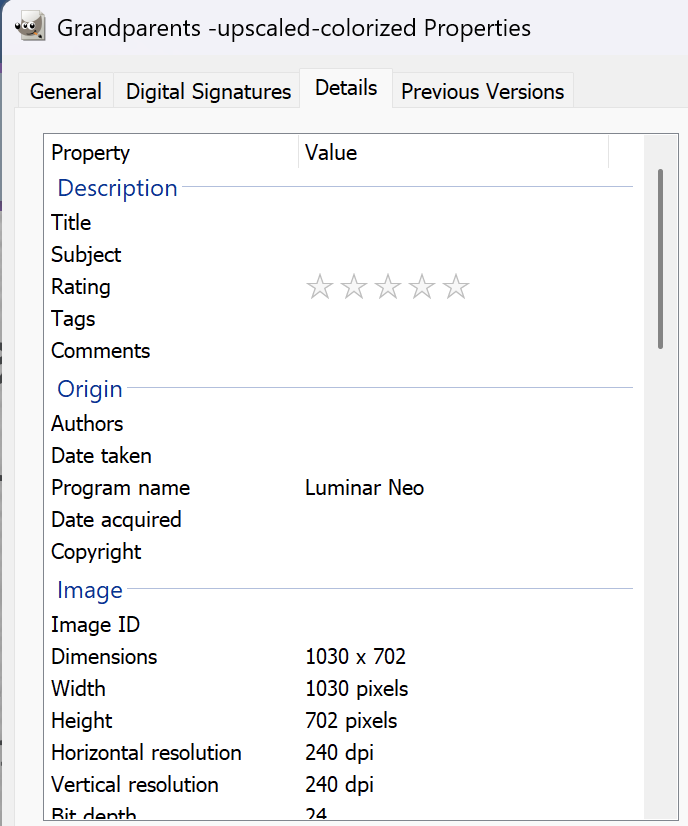
Metadata is additional information that is attached to the file, but is not actually seen. GPS location, Comments, Rating Stars, Title, Comments, image resolution, and other such information is only a small amount of all that can be attached to a file. This data can be seen in Windows Explorer.

You can create “tags” or keywords for example. The tags could be a person’s surname, or “birth certificate”, “marriage”, “Yellowstone”, “camping”, and so forth. These tags are easily searchable across a whole hard drive, not just in a specific file folder.

Metadata is a really neat way to augment the way in which you find your files. As you learn to better organize your photos, the ability to find a specific file improves substantially. The handout below will have more examples of how metadata actually works.

Missionary Communications Board

© 2026 Stephen A Meyers, All Rights Reserved.