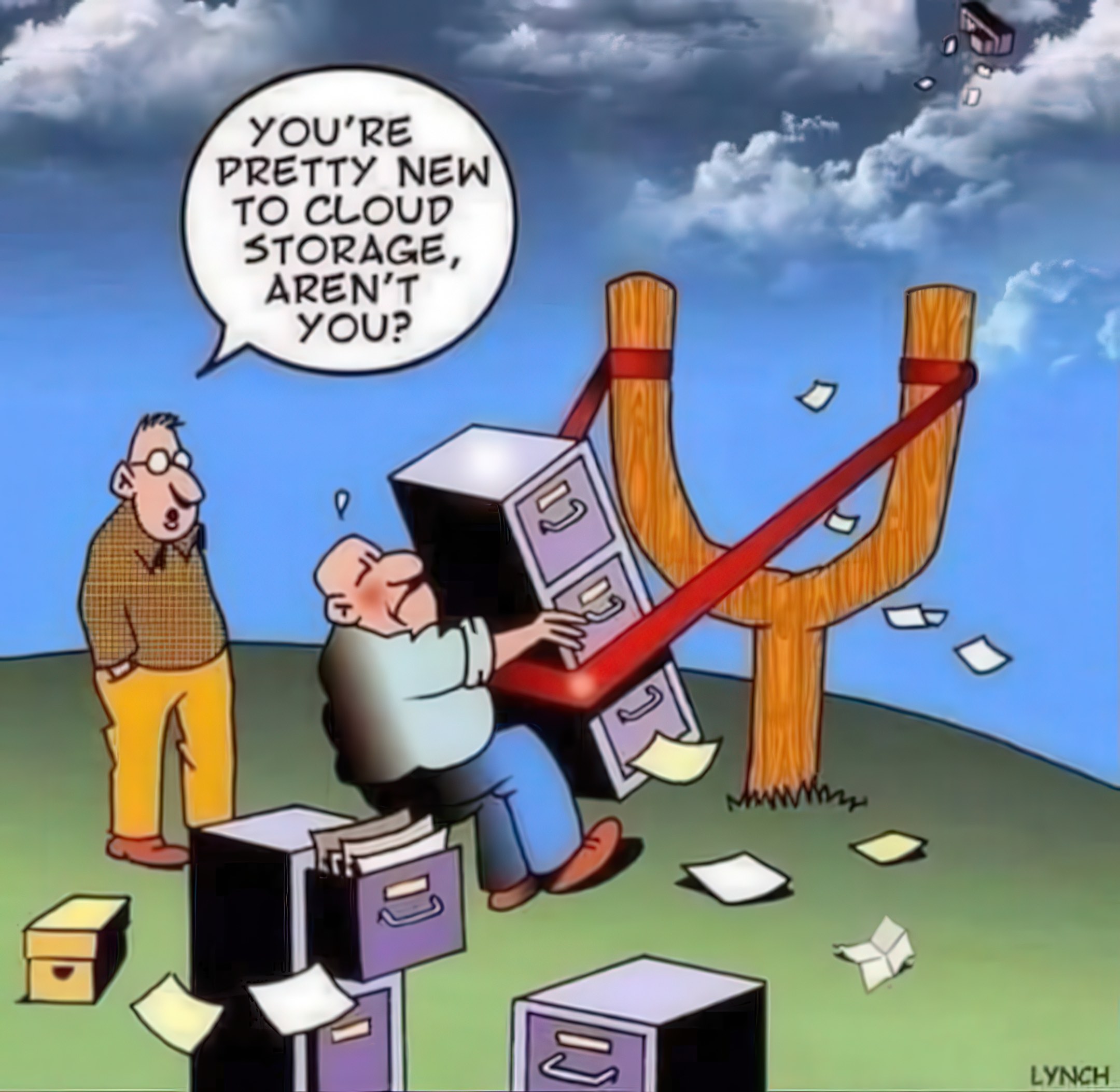
Cloud Drives …What Are They?

"Cloud Drives" are basically large server farms that host huge amounts of storage capacity for individuals and corporations to store their files on. Each user can use a completely self-contained encrypted chunk of that storage for their own files. FamilySearch, Ancestry.com, and many other family history resources are also built on these server farm technologies.
Your data is safe from outside viewing AS long as you practice good security standards. This means, of course, that you have a strong password and use what is called "two factor authentication” or the newer standard “Passkeys”. And of course, you remember to make good backups of your cloud drive contents.
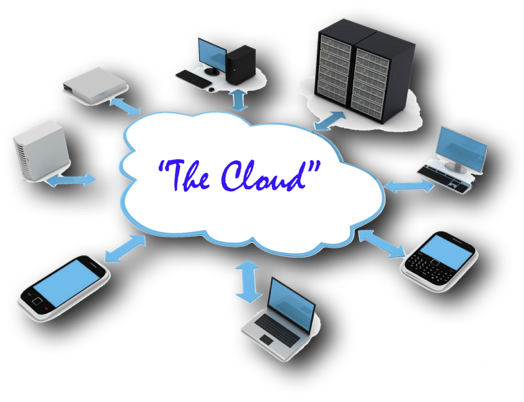
Most provider companies offer a small desktop app that will sync your local files with their servers. This is very handy as it allows files to be modified, let's say on a laptop, and then those changes are automatically synchronized with all of your other connected devices.
Who Provides Cloud Services?
There are many different businesses that will "rent" you space on their servers. Some of the more common storage services are:
Amazon Web Services (the largest server storage)
Most of these services will offer a small amount of "free" storage space. Google is the most "giving" with its 15 gb storage capacity. This may sound like a lot, but actually it's not. I personally have almost 43,000 images of my immediate family over the years or about 300 gb of needed storage space. That doesn't include the family movies, and other documents that I have.
The costs can run from about $1 per month for about 200 gb, to $120/year for 2 terabytes. Just google "cloud drives", and you will be presented with a variety of different providers for these. It's quite easy to sign up and get started with a provider. Do your research first though to ensure that you are getting a good provider. The ones mentioned above are the most commonly used, but Box, iDrive, Sync. and others can also provide you good service. With these latter types of services, be sure that you also have good local backups in case one day, the provider "disappears”. You will, of course still have access to your data files located on your computer and local USB hard drives as well.
Why Should I Use Cloud Services?
One of the most important reasons to do so, is to have a copy of your data existing and stored in an “off-site” location, just in case you have a house fire, flood, hard drive failure, or computer theft. Should one of these things happen to you, you can still easily access all of your files by logging into the server and re-downloading them onto your brand new computer.
Another benefit is that you can easily access your files from any computer using a browser. You would securely log into your cloud drive, like “iCloud Drive”, “Google Drive”, “OneDrive”, and so on. You then have full access to your files using the browser.
You can also easily SHARE your files with your family relations by using a simple “link” that you send them in an email. That link contains the information they need to access the files that you are sharing with them. Most of the time, your link might be for “view only” permissions, which means that they will not be able to edit, move, or delete your files, but only view them and download them.
Are Cloud Drives Safe?
If you leave your house open while you go shopping, you are not practicing good security habits. If you keep a mediocre password or are using the SAME password you use on all your different accounts, you are at very high risk of being hacked.
Although we are referencing “Cloud Drives”, the following principles also apply to any website where you are required to login.
#1 Use Strong Passwords
Strong passwords are ESSENTIAL in today’s world with all the corporate breeches of our information, hacking and such. Your passwords should be different for each site that you visit. Never use the same passwords for all of your sites, especially if they are financial sites like for banking, or with sites that contain your billing information. For this, you are going to have to use a Password Manager of some kind. A password manager is basically a “container” to store all of your passwords, and is protected by a very strong password. This is very similar to the Lord of the Rings saying, “The one ring to rule them all”, but in this case becomes “The one password that rules them all".
-- Example of More Complex Passwords --
SPRAT6scald-ways9gneiss
Or
Chunky-Chimpanzees^Choose-Cheetos
You can purchase a Password Manager (like 1Password, LastPass, and such) or create one with a password protected Excel spreadsheet. You can view instructions on how to use an Excel spreadsheet HERE. You can download a sample password protected Excel spreadsheet HERE (PW=1234).
#2 Use Two Factor Authentication
After logging into a website with your username and password, the website will send out either a text message or an email with a random digital code. This code is pasted into your login screen, and the website then thinks, “Okay, this person is who they say they are” and then allows you into their system. Remember that username/password combinations can be hacked either because of poor security on your part, or a company having an information breach, sending this information to the “dark web". Having this extra step of security ensures that YOU are truly the owner of this cloud space.
Many sites are also going to “Passkeys” that use your biometric information, like facial recognition or fingerprint recognition. A different passkey is created on your device for each of the various sites you visit. When you try to log into a site, the saved passkey has to match the server’s passkey in order to allow you to log into the site. You will have a username, NO PASSWORD, and the device will send the site the passkey information (face, fingerprint, etc) to the site you are trying to reach.
USB flash drives or electronic badges can also store single passkeys for a specific site or computer network. This type of situation often exists in larger corporations where that flash drive or electronic badge holding that passkey allows the user to access the corporation’s network.
#3 Use “Passkeys” if Available by Site
Many sites are also going to what are called “Passkeys” that use your biometric information, like facial recognition or fingerprint recognition. A passkey combination is created for each of the various sites you visit. One passkey copy remains on your device(s) and the other is sent to the visited websites server. These two passkeys in combination have to match or you will not be able to log into the website. There is only a username and the passkey required to access sites. No passwords to remember!
USB flash drives or electronic badges can also store passkey information for a specific site or computer network. This type of situation often exists in larger corporations where that flash drive or electronic badge holding that passkey allows the user to access the corporation’s network.
What Happens if the Cloud Provider Disappears One Day?
If for some reason your cloud service disappears one day, you still have your local daily hard drive backups and those files on your computer's hard drive available. Personally, I would stick with a well known cloud service provider like Apple iCloud, Google Drive, Microsoft OneDrive, or Dropbox as they will continue to be around for a very long time.
Are Cloud Drives Really a Backup Service?
Many cloud storage services tout themselves as a BACKUP service, such as Microsoft OneDrive, or Google Drive. Terminology can be confusing when the name of the synchronization app is called Google Backup & Sync, or OneDrive Backup & Sync.
To be clear, these services are NOT backup services. They only synchronize your files across multiple devices. What happens if you accidentally delete a file from your cloud drive? The file disappears into the trash with 30 days to recover it. What happens if you accidentally delete a file or files, or a folder of files and are not aware of it? 30 days later those files are gone forever.
A TRUE BACKUP will keep those files in an archive folder for you forever until you might need the file(s). Using backup software applications, you could create a situation where you could backup your files to a folder on your cloud provider.