Backup Strategies to Protect Your Data

Have you ever lost any or alll of your computer files? I can tell you from experience that it is a gut sickening experience. All it takes is a sudden hard drive failure to lose everything, even with a brand new computer. I had a top of the line HP business desktop that suffered a hard drive failure less than one month after purchase. Luckily I had already learned to create backups.

A great majority of us tend to procrastinate this backup process. It is not an issue of "IF my computer hard drive crashes", but "WHEN it crashes". Even the backup storage devices will wear out. Consider replacing every few years or so. At least one backup storage device should be kept offsite in case your devices are stolen or destroyed in fires or floods.

Some important things to think about are mentioned below:

Have you developed a backup plan to keep your files backed up automatically? While you can manually do these backups yourself, time has a way of distracting us from keeping frequent backups, and they just don’t get done.

Could you recover a deleted or corrupted computer file from a past backup? Would you know how to restore all your data files after a more significant data loss?

Have you checked to see that the automatic backup service is actually backing up your data files? Typically most purchased software will notify you of errors as they occur.

Do you have an "offsite" backup? Offsite backups become crucial in case your computer files are stolen or destroyed by natural disasters!

Do you have a designated family member that is responsible to be the "backup person" in your family once you are deceased? Does this person also have access to computer passwords, backup passwords, and such?

Is there a plan in place on who will maintain all your family history files after you are deceased? Will these files end up as trash on the curb, or dropped off at our FamilySearch Center? (FYI - the FamilySearch Center can’t become a custodian of your family history files)

Are your data files organized enough to ensure that they are being included in your data backups? If your files are disorganized and strewn all over your computer’s hard drive, you won’t be able to easily created complete backups if you can’t easily find them. (Believe me! I have seen this quite often with patron’s data files.)

Remember the "3-2-1 Backup” Strategy Plan

Keep at Least 3 COPIES of Your Files

Having 3 copies means that you have you original and 2 copies of your data files. The first copy (the original) is on your personal computer. The second copy of your data files is a backup copy and should be stored on a local USB hard drive, preferably connected to your computer so that it can be making daily (or at least weekly) backups of any file changes. The third copy could be a second local USB hard drive storing your backup. You could actually use more than 3 USB storage devices if you really wanted to be safe. However, as we’ll discuss below, a 3rd copy should be stored “offsite”, such as on a “cloud drive”.

This “cloud drive” is NOT the same as using cloud sync services like Google Drive, Apple iCloud, Microsoft OneDrive, or other services. These are “sync” services only, NOT a backup service. When a file is deleted from your computer, that same file is then deleted from the cloud drive. The sync services are not very good backup services as you can see.

However, using your backup software, you could set your data backup to be on your cloud drive, but not using the sync services. More on this below.

Use at least 2 DIFFERENT devices to store your files

As a minimum, your computer’s hard drive and a USB hard drive would be considered two different devices. Be sure that you are NOT STORING your files on USB Flash Drives nor SD Cards. Click for more information about these type of devices.

Keep at least 1 OFFSITE copy of your files

With all the floods around the country, and the devastating 2024 Southern California fires, home thefts, and more, it is easy to realize that our homes are no longer a safe place to store local backups. I can't imagine losing my collection of digitized photos that comprise more than 43,000 photos of our family over the almost 50 years we were married. And then, there are the several thousand photos & documents that I have digitized or scanned of my ancestors. All that work, and in a matter of seconds they can all be gone.

This is where Offsite comes into your backup strategy. Your files could be backed up to a local USB hard drive and then stored at a family's home offsite. I used to back up all my files and take them to my son's home when we went on vacation in the days before "cloud" based options were available. This strategy wouldn't have worked in a situation of flooding or devastating fires. Offsite should be far offsite, like on a server (with their redundant backups), in a place away from local dangers. "Cloud backups" should be an essential part of your backup strategy.

How Do I Begin?

Your files should be organized first! However, if it is going to take awhile to organize your files, go ahead and at least get the best backup that you can. You don’t want to wait until the end and risk losing all your current files.

Use the Windows/MacOS System Folders to Help Organize

Try to keep your data files within the Windows or MacOS system folders (Pictures or Documents). Too many times I have seen patron’s hard drives with files strewn all over the place (even within the Windows System folder). How can you ensure that all your data folders are going to be included in your backups? Centralizing your data files is a key point to remember.

What if you have kept all your scanned files on multiple USB Flash Drives? Copy those files from off those flash drives! First, remember that they are not backup devices! Second, it will be difficult find the files you need when you have to search across all these flash drives. Put them all under one main folder, and use subfolders to describe their contents. Another risk when using USB Flash Drives is that they can become easily corrupted. For a discussion on this, click HERE.

Your files should never be kept in the "root directory”, c:/photos as an example. Keep them stored in your username's folder as in the example below. Under the “Users Folder”, there may be a variety of different profiles for others that use your computer. Your profile will have your name for a folder. Use the system folders under your profile name.

For help with image and document organization, explore helps below:

Develop Your Backup Strategy

Strategy One - Computer & 1 USB Hard Drive - NO Cloud For Offsite Storage

This strategy uses only your computer and a local portable USB hard drive. There is no cloud drive. The USB hard drive would run backups nightly and would be constantly connected to your computer. This is a bare minimum setup. It would be very unusual to have both your computer’s hard drive and the USB hard drive go bad at the same time. However, think about the possibilities of flood, theft of your equipment, fire or other disastrous consequence. By NOT having an offsite option would result in losing all your precious files.

Having cloud storage can be extremely helpful in keeping one copy of your files “offsite” such as having a cloud drive option. However if you do not have that option, then consider using an additional 2nd USB hard drive to back your files up routinely. This USB hard drive could then be given to a friend or family member to hang onto. Just remember to borrow the drive back each time to make your (at least) weekly backups.

Cons: Having to handoff and recollect your hard drive weekly to make additional backuup changes. Also, time can pass quickly before you remember to create another backup to that drive. Just don't forget how important all those photos and documents that you have collected are!

Strategy Two - Computer & 1 USB Hard Drive & Cloud For Offsite Storage

Consider Different Options in Which to Use Your Cloud Drive

Option #1 - CLOUD Storage Used as a File Synchronization Service

The most commonly used strategy for cloud storage is as a synchronizing service. When the cloud app is installed on your computer, it creates what looks like a new folder on your computer. Anything that is moved into this folder will be synchronized with the cloud drive.

When you create a new file, modify an existing one, or delete a file that is in this folder, those same changes will occur on your cloud drive. If you have another laptop, phone, or tablet that is synchronizing with the cloud drive, those same changes will then occur on those devices as well.

This type of strategy can work well, particularly if you have good solid USB hard drive backups. If you computer hard drive goes bad, you can restore your files from that drive, or download the files from your cloud drive as well.

However, using the cloud in a file synchronization manner is NOT the same as a true backup. Having your files stored offsite is quite helpful if you have somehow lost access to your computer and backup drive as in floods, theft, fire, and so forth. Let’s say you accidentally deleted a folder before the next local USB hard drive backup was created. You restore your files from the cloud, but that deleted file folder will not be restored, and you can’t restore it from the now lost USB hard drive. There is one caveat in that most file synchronization services do keep deleted files in a “Deleted Folder” for around 30 days.

Option #2 - CLOUD Storage Used as a Separate Storage Backup

Another option with available cloud storage is to NOT use the file synchronization service, but to use it as a target backup device, just like your local portable USB hard drive. Anything that is placed into the cloud drive folder on your computer will be synchronized with the cloud service.

Create a backup folder on your cloud drive, like “My Backups". Next, set your backup software to use that folder as your backup device. There is one problem with this, in that your backup will reside on your computer’s hard drive as well as in the cloud. You don’t really want a duplication of your files taking up your hard drive’s space.

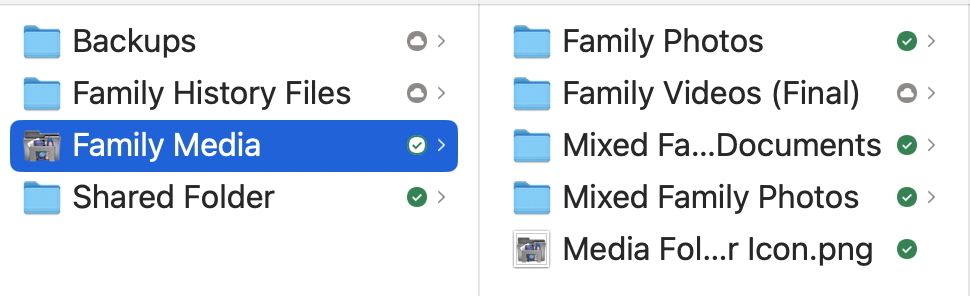
Most cloud providers allow you to keep your folder or files only in the cloud and not downloaded on your computer. This greatly saves your hard drive space. There are different icons after the file or folder labels that tell you the status of where these are stored.

Let's use Dropbox as a cloud provider example, but most of the other cloud services have similar status icons. In the image below, you will see small icons to the right of the folder name. The grey circle with the cloud in the center mean that all the files in the folder have been uploaded and are ONLY available online. This means that they are not taking up any computer hard drive space. They can still be downloded from the cloud drive. However, they will still be synchronized where changes occur. The Family Media folder has a mixture of some downloaded and some only online or in the cloud as seen by the white circle with a green check mark in it. The solid green icon with a white checkmark means that these folders and files in them are shared with others.

With this Option #2, you then have TWO backup devices that will keep track of all your files and even those that are deleted. If you need to go back to one of your backups (USB Drive or CloudDrive Backup) and restore files, they are still available to you. The negatives with this option? None really, except that you lose the ability to synchronize files across multiple devices.

But ... see Option 3

Option #3 - CLOUD Storage Used as BOTH Storage Types

Cloud Sync Storage

+

Why not think about using your cloud drive as BOTH a file synchronization service and as a separate backup drive? It can be set up as such using the small cloud software app that comes with your cloud service. Consider this option below.

You may need a lot of cloud storage if you have a lot of computer files. If cloud drive space is not an issue, then this option will work for you. You will be duplicating your data files by using this method, however you can get the best of both worlds. If you have 1,000 gigabytes of cloud storage, and have 300 gb of local hard drive data, you will be filling that cloud storage space with at least 600gb. (300 gb of local data + 300+ gb of backups). Actually over time, your backup size will begin to use more drive space because you will be archiving files that you have deleted (in case you ever wanted to restore them). So, if you do have more data then say 300 - 400 gb, you will want to ensure that you cloud drive storage is larger than 1,000gb (or 1 terabyte).

To set up cloud synchronization, simply drop your data folders into your cloud drive folder. These data folders will synchronize between your computer and the cloud drive.

To set up a data backup folder, create a folder in your cloud drive folder named something like "Backups", "My Computer Backup", or such. You will then direct your backup software to put all the backup files into this folder. You will want to choose the cloud option of storing these files only in your cloud drive, and not on the computer. You will not need to access to this folder unless you need to restore files. It's basically a folder that you will see, but not have to fiddle with.

How Do Backups Work?

There are several different types of backups. There are pros and cons with each type. Without getting too technical and describing each, just know that there is a FULL backup, or one where all the files are copied to a backup drive at the same time. To avoid having to copy all the files over each time you back up your data, two other common types of backup types were created. The incremental and differential backups only back up the files that were added, deleted, or changed since the last full backup, but they do it in a different way.

The incremental backcup is the most common type used, however it can be more difficult and slower to restore your files. There are Pros and Cons to each of these such as file restoration ease, or amount of storage needed over time. Whatever software you purchase, be sure you know how the software works, by creating a small backup and then first try to restore a file or two, and then all of the files from the backup set. Once you are comfortable, create a complete backup set.

Most software allows you to select which files you want to backup. This allows you to create not just one big backup of all your files, but multiple smaller backup sets. For example, if you wanted to just backup your family photos, you could create a “Family Photos” backup and have it run weekly. For more active family history files that you access and add to daily, you could have a backup set called “Research Files” that just backs up those folders daily. You are not limited to just one big backup. I have probably 15 different backup sets. These different backup sets may go to different hard drives, to a cloud drive, and so forth. This does help in not having to have one HUGE hard drive, but can split these different backup sets to smaller target hard drives. I also do create full backup sets, which go to 2 different hard drives as additional "insurance against loss".

One more backup type that I should mention is to just copy, let’s say your family photos folder, to a different hard drive and then label that new folder something like “202605 - Family Photos”. You would then just leave this folder alone, no adding to, deleting files, and such. Why would I want to do this? Situations arise where a file may become corrupted on your computer and then can’t be opened. This corrupt file will then be backed up each day or week. You discover one day, months or longer down the road, that a certain ancestor’s PDF file won’t open. You go back to your routine backups, and still the same thing. This is the exact reason you keep these periodic backups. You go to your backup set from 202605, let’s say, and that same file is still corrupted. The next step would be to go to your 202511 backup set and try to open the file. As luck has it, that copy opens. You now copy that good file to your computer’s hard drive and get rid of the corrupted one. Your new subsequent routine backups will of course copy this new file to your backup drive. Probably making a full backup set of your files every 6 months is adequate. Of course, this means that you will need another large hard drive to fit all these backups on.


Backup Software Applications

Windows Applications

Unfortunately there are no good backup apps built into the Windows operating system that will create backup sets. There is a legacy backup app called “File History” in Windows 11, but it is difficult to set up. Another Windows backup utility called "System Image” will create a snapshot of EVERYTHING on your computer and write that backup to whatever target device you select. This backup option is great for a different purpose, but not the one we are focusing on, which is just backing up your data files. Microsoft encourages you to use OneDrive that they tout as a “Backup & Restore” tool. It is however, not a true backup but a sync service.

There are a host of software vendors that you can google for that have good software backup. Acronis, iDrive, Carbonite, and others have good backup software. BackBlaze is one that I use as well. I just set up the software and it constantly backs up the changes on my local hard drive and also any connected USB hard drives to their cloud. They have unlimited cloud storage space. It runs in the background and I never have to worry about if the service stops. It will notify me by email if the connection is no longer connected. If you ever need to restored files, you can either download them as a whole or individually. If you have terabytes worth of data, then you have the option of having the company send your files on a USB hard drive as well. BackBlaze (both Windows and MacOS) just runs in the background and I forget that I have it, other than the monthly stats reports.

Apple MacOS Applications

I am a Mac user and have a few other options that help me to backup files. The Apple operating system has "Time Machine" that you can setup a target USB hard drive and it automates everything. I like Time Machine and use it when a file(s) are corrupted or I need a previous version of a file that may have pieces of information I need again. I can go back 1 day, 1 week, 1 month, and so forth, and restore the information that was lost very easily. I also use an app called Carbon Copy Cloner that allows me to create "tasks" or small backup sets containing only the folders that I want to backup within each task. I often have 5 or more tasks that I can create and run at different frequency intervals and send them to different USB hard drives, or as I use, solid state drives. There are other more complex options that I can do with the software as well.

There are other software vendors for Apple Mac systems as noted in the previous section. Whatever software you choose and on whatever operating system, expect to pay at least $50 per year to help you with your backups. It's worth it to help prevent the anxiety of data loss.

Additional Information

Explore Information About Cloud Drives

This is a lot of information to cram into this webpage. If you have questions though, please contact me using the link below. I can help get you started with this very important task.

Missionary Communications Board

© 2026 Stephen A Meyers, All Rights Reserved.