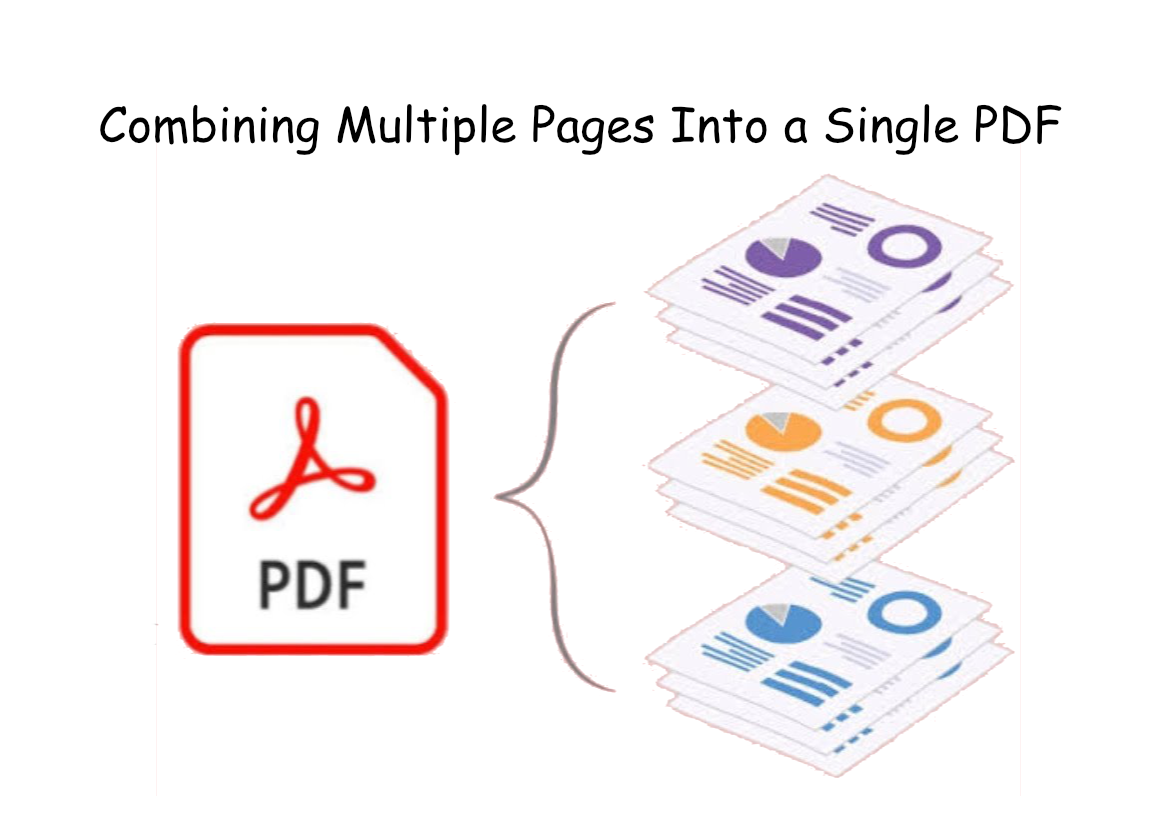
Creating a PDF From Multiple Files

PDF (Portable Document Format) files are an easy way to share document files with others. They were created for this purpose back in 1993 as a proprietary file format by Adobe. In 2008, it became an open standard for all to use. Both Apple MacOS and Windows have "PDF Printers" built into their operating systems. Many apps can create PDF files.

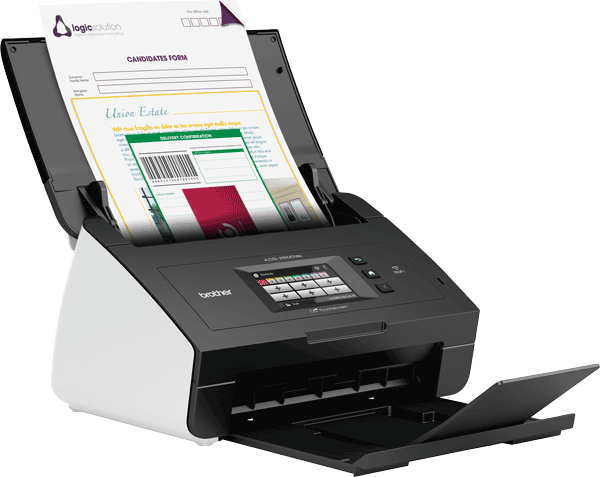
Many document scanners will quickly scan multiple pages into a single PDF file for you. However, if you scan the pages on a flatbed scanner, you will have to resort to other options to get them combined to a single PDF file. We'll discuss these options below.
Important: Make sure that your scanned pages have a numerical sequence to them so that the pages can be imported into the app in a proper sequence otherwise you will have a PDF file all out of order. There are other PDF editors that will allow you reorder your pages, but this is just another unnecessary step to do.

Option #1 - Scan Directly to a PDF File

As noted above, using these rapid document scanners, your stack of document pages will be quickly scanned and combined into a PDF file. This is the easiest way to get your documents digitized to a single PDF file that can be easily shared with others.

What "dpi" settings will you use for your standard page size of 8.5"x11" size? Set your scanner’s DPI to 300 dpi. What would happen if you scanned at 600 dpi? The pages will be scanned to a higher resolution, but also at a cost of greater file size. You are essentially doubling the output size of your PDF file. PDF files can be "shrunk" down if too large MOST of the time, but scanned pages at higher resolution are more difficult to do. This also requires special PDF editing software to do so.

Option #2 - Online Apps That Combine Single Image Pages

Adobe software is the "gold standard" to create and edit PDF files, however since the PDF format became an open source format, many different apps can now create and edit PDF files as well.

There are "free" online apps that can be used to take your single image scans and combine them to a single PDF file.

Simply web search "create pdf from multiple images" or "jpg to pdf" and you will be presented with many different online services that can do this for you. Some are free for a few scans before wanting you to subscribe to their service.

HOWEVER, BE AWARE…In March 2025, the FBI came out with a cautionary bulletin about these type of online services packaging malware inside the PDF file. When the PDF file (with the packaged malware) is opened, the malware will then install itself onto the host’s computer without any awareness. The bulletin can be found HERE if you would like to further read more about this.

Here are several free online services that have been around for several years, and are likely safe:

Option #3 - Import Your Pages Into a Word Processor

This is an alternate way of pulling all your images together and then creating a single PDF file. This method also allows you to add text or other objects with your pages before you export to PDF format. It is a simple process to do by using a word processor.

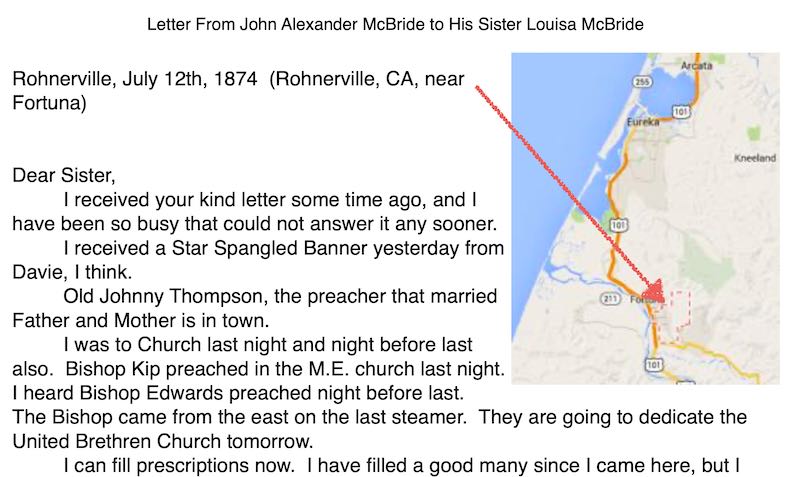
Click on the image to the right to see an example of a document that was created in Apple Pages, an app very similar to Microsoft Word. You can do this same thing with any "Word" type app, like OpenOffice, LibreOffice, and others.

In this example, I transcribed the letter, placing this at the top of the document and then inserted each page of the letter in sequential word document pages. I even included a map image showing the location where the letter was written from. If a document had a lot of names of family or friends, you could search out the FamilySearch Person ID and include that next to the transcribed name so that others could look this person up. You could even make the Person ID a "hyperlink" that would open up that person's page in FamilySearch when clicked on. Pretty cool stuff.

If you have any questions about how to do this, please contact me using the "Contact Me" link below.

Missionary Communications Board

© 2026 Stephen A Meyers, All Rights Reserved.