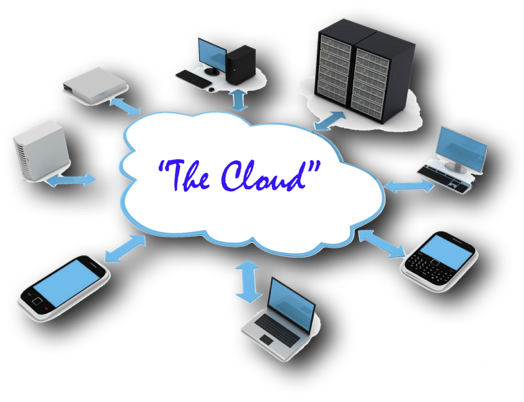
There are many different businesses that will "rent" you space on their servers. Some of the more common storage services are:
Most of these services will offer a small amount of "free" storage space. Google is the most "giving" with its 15 gb storage capacity. This may sound like a lot, but actually it's not. I personally have almost 43,000 images of my immediate family over the years or about 300 gb of needed storage space. That doesn't include the family movies, and other documents that I have.
The costs can run from about $1 per month for about 200 gb, to $120/year for 2 terabytes. Just google "cloud drives", and you will be presented with a variety of different providers for these. It's quite easy to sign up and get started with a provider. Do your research first though to ensure that you are getting a good provider. The ones mentioned above are the most commonly used, but Box, iDrive, Sync. and others can also provide you good service. With these latter types of services, be sure that you also have good local backups in case one day, the provider "disappears”. Of course you would still have your data files located on your computer as well.
One of the most important reasons to do so, is to have your data backed up and stored in an “off-site” location, just in case you have a house fire, flood, hard drive failure, or computer theft. Should one of these things happen to you, you can still easily access all of your files by logging into the server and re-downloading them onto your brand new computer.
Another benefit is that you can easily access your files from any PC using a browser. You would securely log into your cloud drive, like “iCloud.com”, “drive.google.com”, etc and then you have full access to your files.
You can also easily SHARE your files with your family relations by using a simple “link” that you send them in an email. That link contains the information they need to access the files that you are sharing with them. Most of the time, your link might be for “view only” permissions, which means that they will not be able to edit, move, or delete your files, but only view them and download them.
If you leave your house open while you go shopping, you are not practicing good security habits. If you keep a mediocre password or are using the SAME password you use on all your different accounts, you will have a huge cybersecurity risk of being hacked soon.
Use Strong Passwords That Are Different For Each of Your Web Accounts
-- Example --
SPRAT6scald-ways9gneiss
Or
Chunky-Chimpanzees^Choose-Cheetos
What are those best standards of safety practice? #1) A very strong password and #2) using "two factor authentication” or the newer “Passkeys".
Strong passwords are ESSENTIAL in today’s world with all the corporate breeches of our information, hacking and such. Keep your passwords distinct for each of your other sites as well. For this, you are going to have to use a Password Manager of some kind. What this means is that your password manager is protected by a very strong password and contains all your strong webiste related passwords inside it. The “one password to rule them all” (Lord of the Rings). You can purchase one or create one with a password protected Excel spreadsheet. You can view instructions on how to use an Excel spreadsheet HERE. You can download a sample password protected Excel spreadsheet HERE.
What this means is that upon logging into your cloud drive with your username and your strong password, the system will send you either a text message or email with an additional code that you will have to enter. The code from the email or text is then entered into site's textbox requesting this authentication and you are then allowed into the site. Having this extra step of security ensures that YOU are truly the owner of this cloud space.
Many sites are also going to “Passkeys” that use your biometric information, like facial recognition or fingerprint recognition. Multiple passkeys are created on your device for each of the various sites you visit. On the site’s server, that passkey is recognized as being you, and allows a login to occur. You will have a username, NO PASSWORD, and the device will send the site the passkey information (face, fingerprint, etc) to the site you are trying to reach.
USB flash drives or electronic badges can also store single passkeys for a specific site or computer network. This type of situation often exists in larger corporations where that flash drive or electronic badge holding that passkey allows the user to access the corporation’s, medical clinic’s etc network.
If for some reason your cloud service disappears one day, you still have your local daily hard drive backups and those files on your computer's hard drive available. Personally, I would stick with a well known cloud service provider like Apple iCloud, Google Drive, Microsoft OneDrive, or Dropbox as they will continue to be around for a very long time.
Many cloud storage services tout themselves as a BACKUP service, such as Microsoft OneDrive, or Google Drive. Terminology can be confusing when the name of the app to help with file syncronization is called Google Backup & Sync, or with OneDrive, there is a button labelled "Manage Backups".
To be clear, these services are NOT backup services. They only synchronize your files across multiple devices. What happens if you accidentally delete a file from your cloud drive? The file disappears into the trash with 30 days to recover it. What happens if you accidentally delete a file or files, or a folder of files and are not aware of it? 30 days later those files are gone forever.
A TRUE BACKUP will keep those files in an archive folder for you forever until you might need the file(s). Using backup software applications, you could backup your files to a folder on your cloud provider, allowing you to have an additional true "offsite" backup.